Approve a transmittal
For: engineers, designers, managers
Goal: sign off a draft transmittal as one of your approval roles, so it can be issued.
Prerequisites
- The draft transmittal's document set is complete — approving attests to what you can see.
- You hold the approval role in question (drafter, designer, or manager). Your roles are set by an admin in the Users view.
Steps
- Open the draft transmittal.
- Review the documents on the transmittal — this is what you are signing off on.
- In the approvals panel, approve as your role. If you hold more than one required role, you can approve multiple roles.
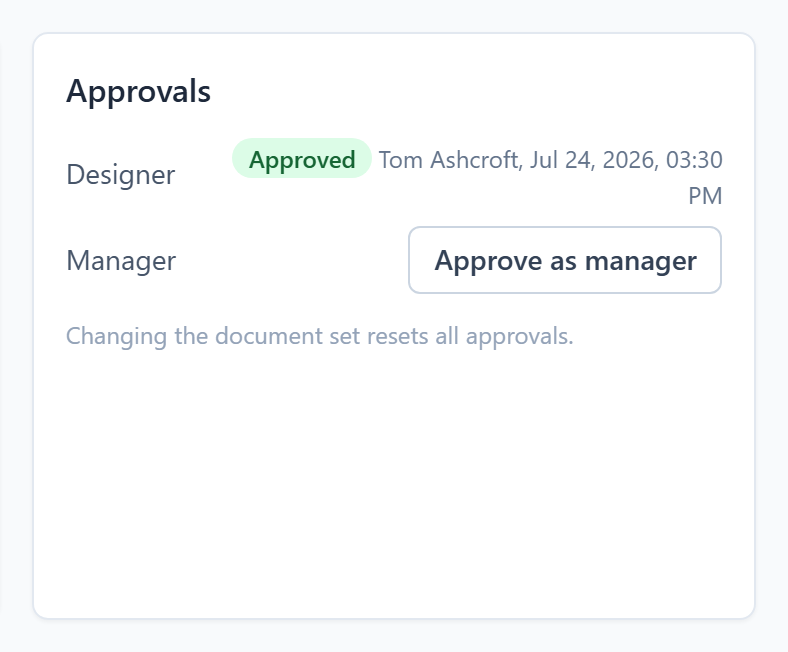 The approvals panel shows which required roles have signed off, by whom, and when.
Result
Your approval is recorded with your name, role, and timestamp. When every role the account requires has signed off, the "Awaiting … approval" blockers clear and the transmittal can be issued.
If your approval disappears
That's the system working: any change to the document set — a version added, removed, or replaced — clears all approvals, because sign-off belongs to a specific set of documents. Review the new set and approve again. Metadata changes (name, recipients) do not clear approvals.
Related articles
- Approvals — how roles and required approvals work
- Issue a transmittal
- Account settings — choosing required roles