Upload documents
For: engineers, document controllers
Goal: add one or more documents to the project register, with their details filled in, ready to issue.
In Fluvial, documents are always uploaded into a draft transmittal — the transmittal is both the delivery vehicle and the intake tray. If you just want the documents in the register for now, that's fine: a draft transmittal can sit unissued as long as you like.
Prerequisites
- A project, and a draft transmittal in it (see Create a transmittal).
- Your documents (PDF files preferred). Native files can be attached afterwards — see Add native (CAD) files.
Steps
- Open the draft transmittal and select Add documents.
- Drag your PDF files into the dialog (or browse for them). You can add a whole drawing set at once.
- Upload. Each file appears on the transmittal and Fluvial begins reading its title block — you'll see it working for a few seconds per file.
- When extraction finishes, each document shows its pre-filled number, name, and revision. Review and confirm each one, or fill in anything left blank. See Confirm details or enter them manually.
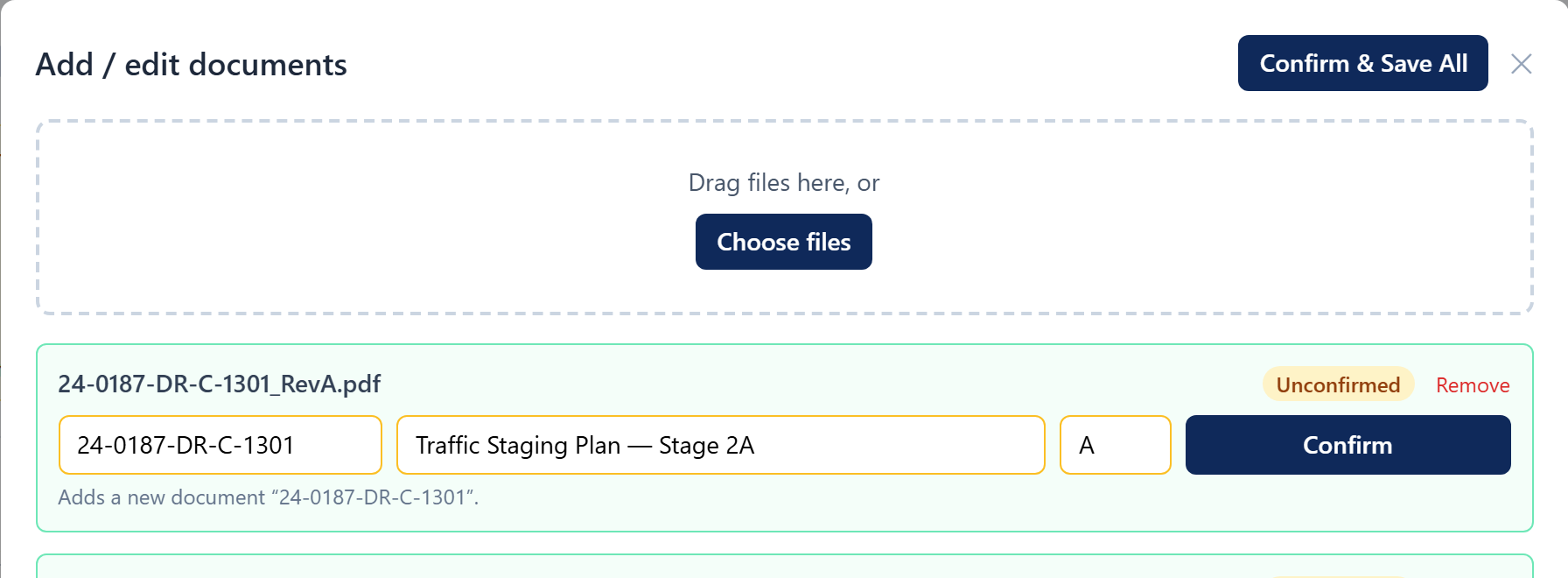 Drop a whole drawing set in at once — each file is read automatically.
What happens behind the scenes
- A file whose document number is new to the project creates a new register entry.
- A file whose number matches an existing document becomes that document's next version.
- A file Fluvial can't read confidently arrives with blank fields for you to complete.
Result
The documents sit on the draft transmittal as draft versions, visible in the register, and the transmittal is ready for recipients and approvals.