Automatic metadata extraction
For: all users
Automatic extraction is the heart of Fluvial: when you upload a document, the app attempts to read its title block and pre-fills the document number, name, revision, document type and drawing type (if applicable) — turning the most tedious part of document control into a confirm-and-go step.
Visual metadata extraction is currently only available for PDF files; however, Fluvial will fall back to file-name matching for other file types.
How it works
- The title block is located. For single-page documents, Fluvial assumes them to be drawings and looks in the bottom-right corner for a title block. For multi-page documents (reports, specifications), it looks at the entire first page.
- AI reads it. An AI vision model reads the document — the same way a person would — and returns the document number, name, revision, document and drawing types.
- Only confident answers are used. A field is pre-filled only when the model is genuinely confident about it. Any low-confidence results are left blank for you to manually enter.
- You confirm. Nothing extracted is final until you've reviewed and confirmed it. You always have the last word.
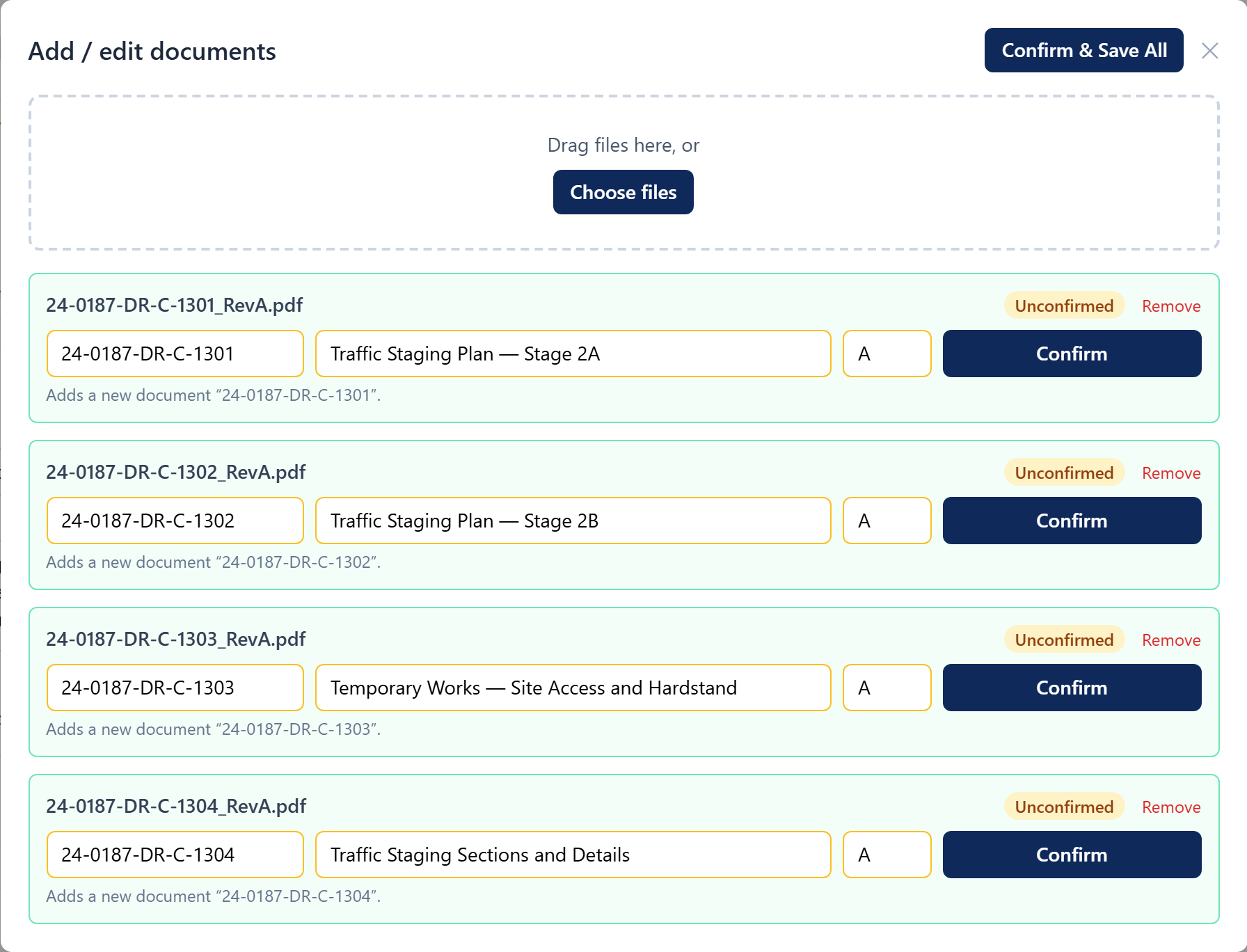 Each extracted field is pre-filled for review — low-confidence fields arrive blank.
What extraction does with the result
- New document number → a new document is created in the register.
- Document number already in the register → the upload is attached as that document's next version, and the register's established document metadata is kept (the register is the source of truth for naming).
- Number already on this transmittal → a transmittal carries at most one version per document, so the details are left for you to resolve manually.
- Nothing readable / extraction fails → the document simply falls back to manual entry.
Non-PDF files
Models and other native file types cannot be read, so Fluvial uses the filename instead:
- The filename contains a document number already in the register → the upload is attached to that document as its next version, ready for you to confirm. This applies to PDFs too, whenever the title block can't be read.
- Revit, Navisworks and IFC files (
.rvt,.nwd,.ifc) → the document type is set to 3D Model automatically, unless the document already has a type. - No match → the number and name are left for you to enter.
Getting the best results
- Standard title blocks in the bottom-right corner of drawings extract best.
- Fluvial only looks at the first page of reports and specifications. If your document and revision data is not included on the first page, extraction won't be possible.
- Clear, text-based PDFs beat low-resolution scans.
- Meaningful filenames help (e.g.
S-201_C.pdf) — the filename is part of what the model sees, and it's the only signal for 3D models and CAD files. Starting the filename with the document number is the most reliable habit.
Data security
To facilitate the automatic extraction functionality, Fluvial uploads portions of your documents to Google's Gemini models. For drawings, the extract sent to Google will typically only include the title block; however, other areas of the drawing may also be sent. For other documents, only the first page is typically sent. Google does not use uploaded images in its model training. For more information on how Google uses your information, refer to their privacy terms.