Your first transmittal in 10 minutes
For: engineers, designers, project managers
Goal: upload a set of documents, get them approved, and issue them to a recipient — end to end.
This walkthrough uses a realistic scenario: you're issuing two revised structural drawings to the project architect.
Prerequisites
- You're signed in (see Signing in for the first time).
- Your account has at least one project. If not, create one.
- The drawings you want to issue as PDF files.
Step 1 — Create a draft transmittal
- Open your project and go to Transmittals.
- Select New transmittal and give it a name (e.g. Structural drawings — for construction).
A draft transmittal is your working area: you can add and remove documents, choose recipients, and collect approvals. Nothing is sent until you issue it.
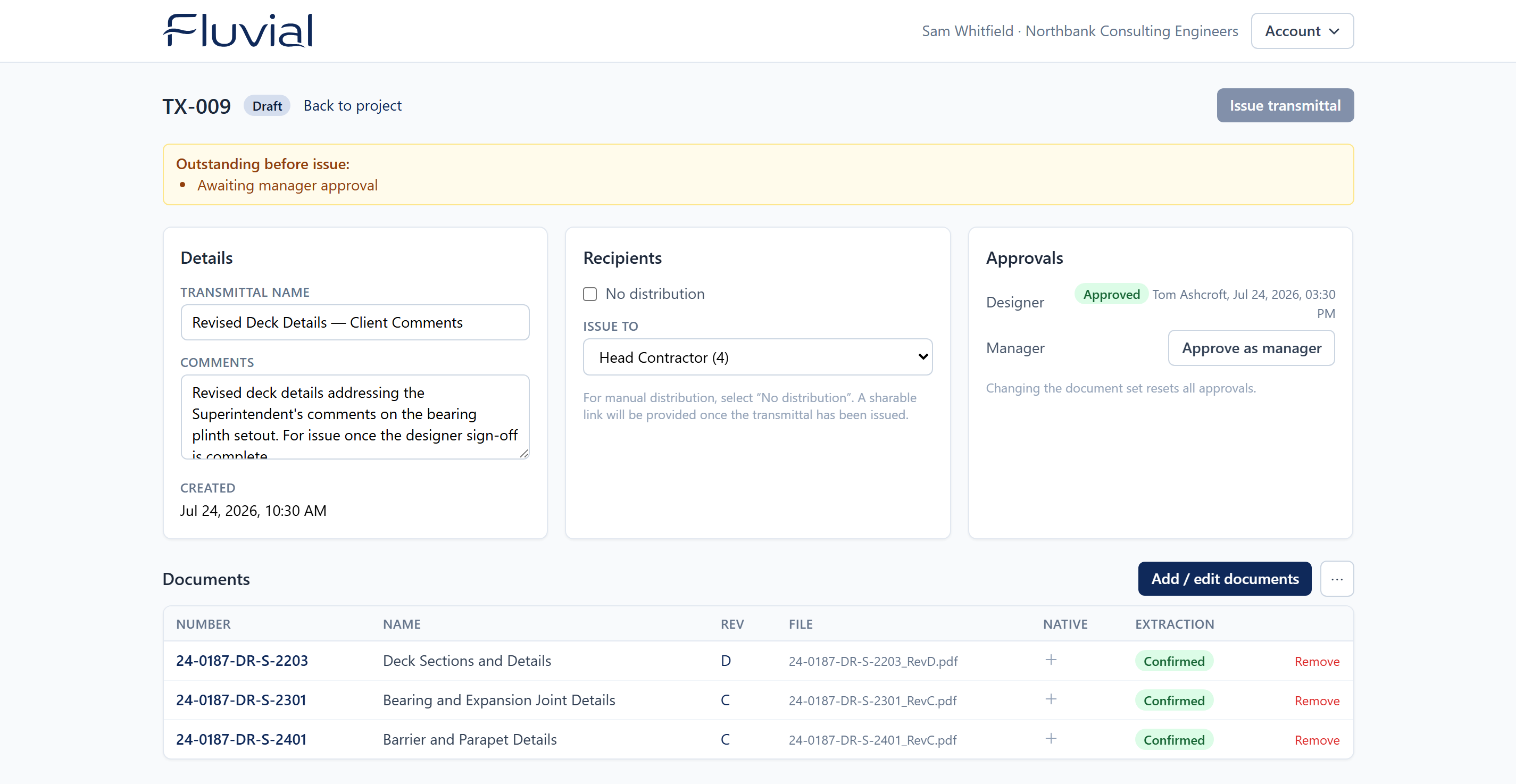 A draft transmittal — documents, recipients, and approvals in one place.
Step 2 — Add your documents
- On the draft transmittal, select Add documents and drop in your PDF files.
- Watch the magic: Fluvial reads each drawing's title block and pre-fills the document number, name, and revision. This usually takes a few seconds per file.
- Review each pre-filled row and confirm it. If a field is blank, Fluvial wasn't confident enough to guess — type it in yourself.
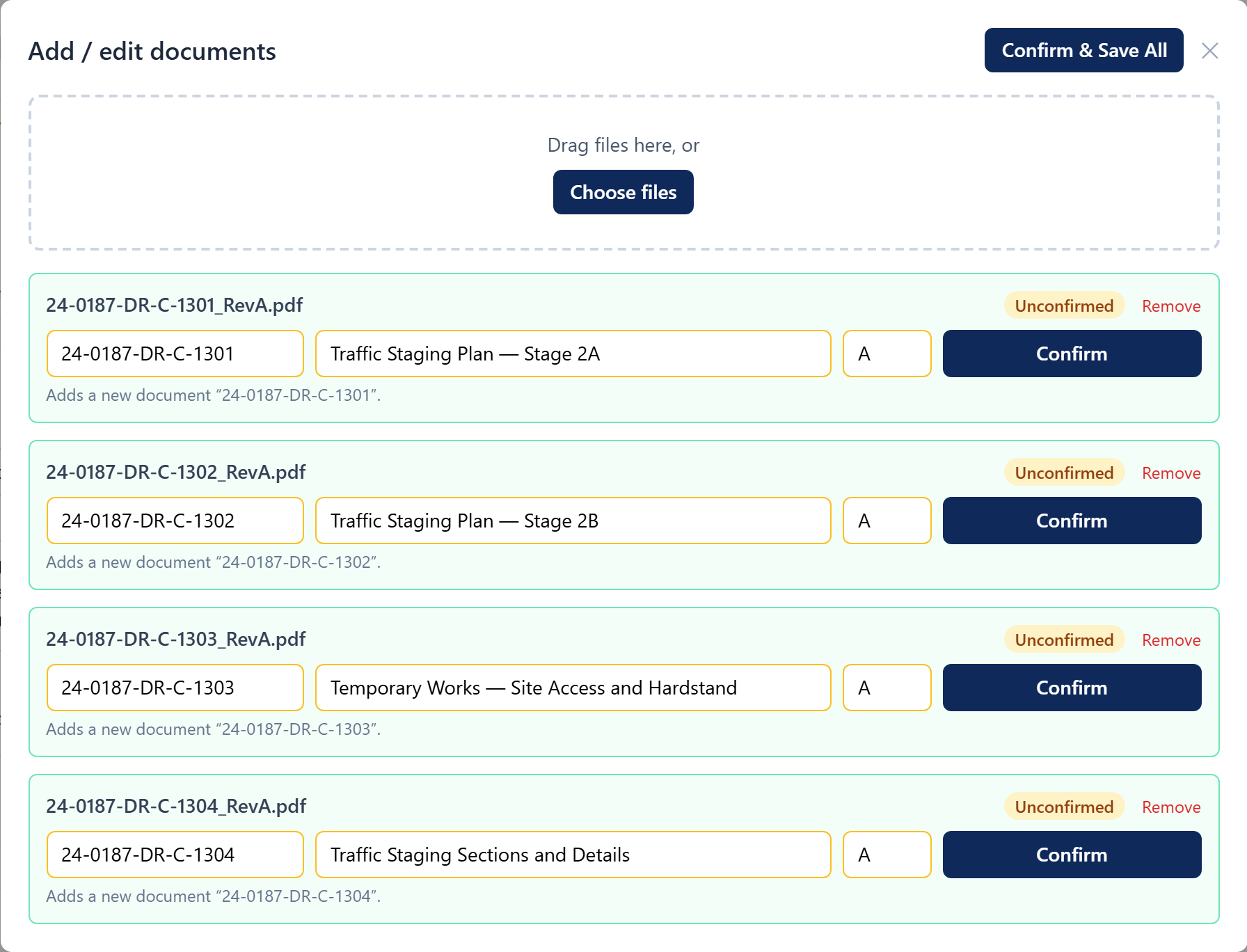 Extracted details are pre-filled for you to confirm — never applied blind.
If a document number already exists in the project register, your upload is added as a new version of that document automatically — that's how revisions work. See Automatic metadata extraction for the details.
Step 3 — Set up a contact group
Transmittals are addressed to contact groups, not to individual email addresses typed in at issue time — so the architect needs to exist as a contact in a group before you can send to them. If your project already has a suitable group, skip to Step 4.
- In the left-hand menu of your project, select Contact Groups, then + New group.
- Name it after the distribution list rather than the person — e.g. Architect Team. Select Create.
- Open the new group and add the architect: fill in the row at the top (email is required; first name, last name and company are optional) and select Add contact. Repeat for anyone else on the list.
Adding a whole distribution list at once
Click Bulk add contacts, copy the recipients directly out of an existing
email, and paste them into the presented dialog input — e.g.
Jane Doe<jdoe@consulting.com>; John Smith<john.smith@example.com>. Fluvial
splits out the names and addresses, skipping duplicates and anything that
isn't a valid address.
Groups belong to the project, so they're reusable across every transmittal in it. See Contacts and contact groups.
Step 4 — Choose recipients
- Back on the draft transmittal, in the recipients section, choose your group under Issue to.
- If you're distributing manually instead, select No distribution. A share link will be provided once the transmittal has been issued.
Step 5 — Get approvals
If your account requires approvals (many do), the transmittal shows which roles — drafter, designer, manager — still need to sign off. Anyone holding that approval role can open the transmittal and approve it.
Approvals protect the document set
If anyone adds, removes, or replaces a document after sign-off, all approvals reset — an approval always refers to exactly the documents that will be issued.
Step 6 — Issue
- Select Issue. If the button is inactive, hover over it — Fluvial lists exactly what's blocking (e.g. "Awaiting manager approval").
- Confirm. Fluvial now:
- locks the transmittal permanently (it can never be edited again),
- generates a transmittal PDF with your company logo,
- emails each recipient their own secure portal link with the transmittal PDF attached,
- starts recording the access history.
Result
The architect receives an email, clicks their link, and downloads the drawings from the portal — no account or password needed on their side. You can see every download in the transmittal's access history.
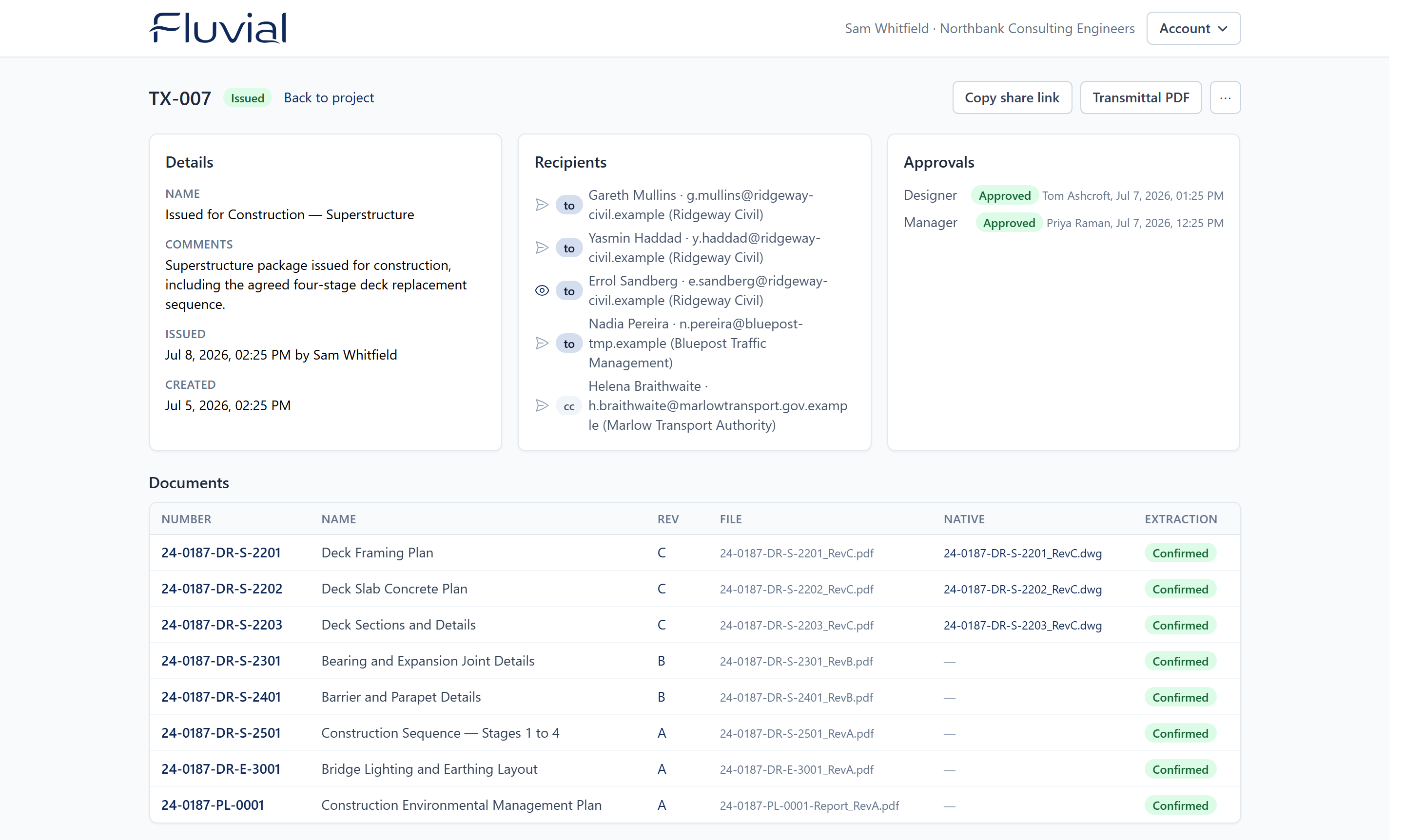 An issued transmittal — a permanent, unchangeable record of what was sent.