Projects
For: all users
A project holds one document register and its transmittals. Every user in your account sees every project — there are no per-project permissions to maintain.
Create a project
- From the home page, select New project.
- Enter the project number and name.
- Create. The project appears for everyone immediately.
Project creation is subject to your plan's project limit. If you are unable to create a new project, talk to your account admin about upgrading your subscription.
Project settings
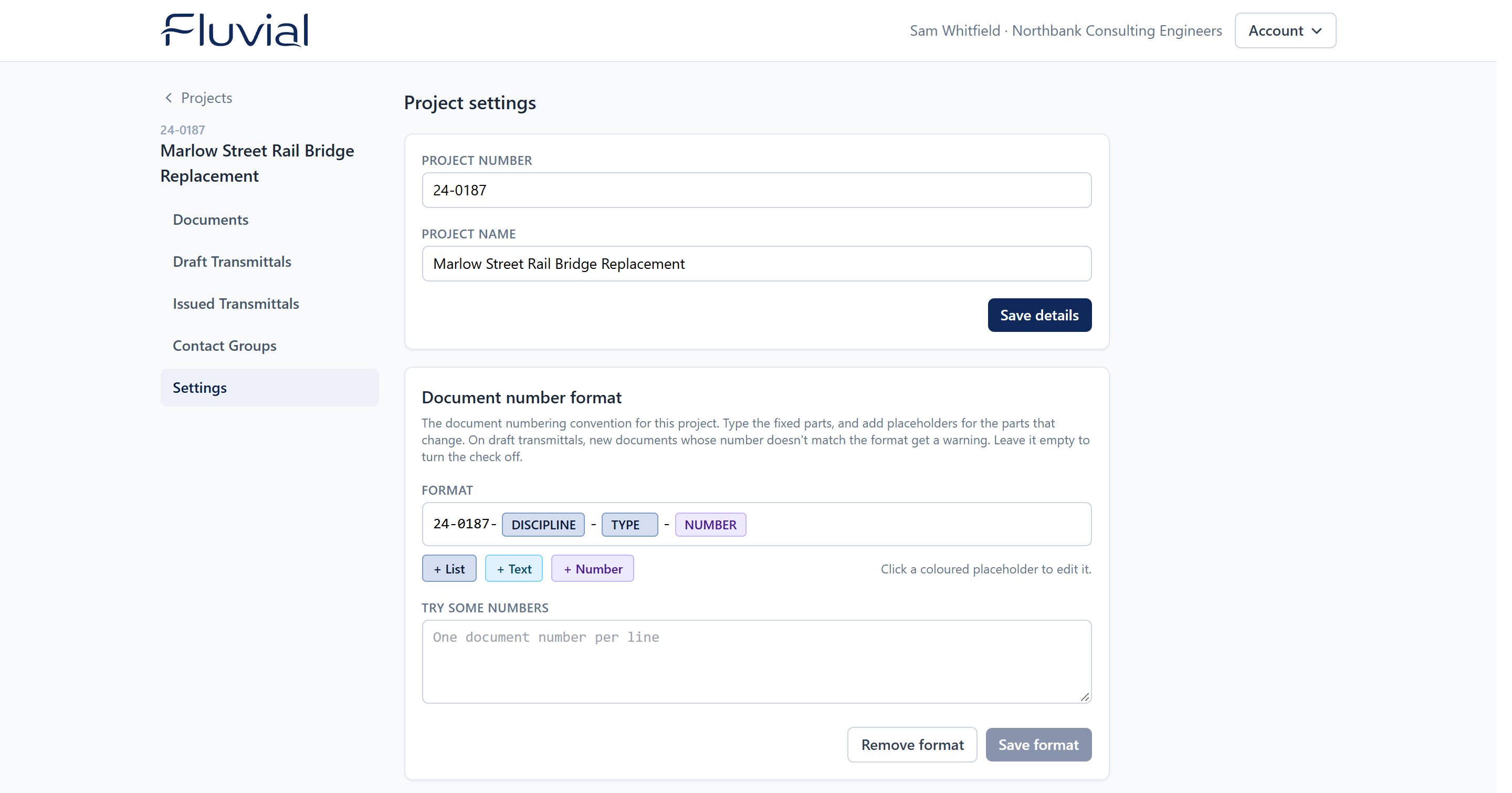 Project settings — details and the document number format.
Two independent cards, each with its own Save button — saving one does not touch unsaved edits in the others.
- Project details — number and name, editable at any time by any user, not just admins. The project number must stay unique within the account; reusing one already in use is rejected.
- Document number format — the project's numbering convention, so a mistyped document number is caught before it reaches the register. Optional; see below.
Document number format
Set a format and Fluvial checks the number of every new document you add to a draft transmittal. A number that doesn't fit gets an advisory warning under it, naming the part that's wrong (e.g. "Doesn't match the project's number format (check LEVEL)"). Warnings never block issue. Documents already issued on the register are not re-checked when you add a new revision.
To build a format:
- Type the fixed parts of the number straight into the Format field —
for example
AMS01-. - Select + List, + Text or + Number to add a placeholder for a
part that changes, then fill it in:
- List — one of a set of values, such as the discipline codes
ARC,STRandMEP. - Text — letters and/or digits of a given length.
- Number — digits of a given length, such as a four-digit sheet number.
- List — one of a set of values, such as the discipline codes
- Give each placeholder a name — it appears in the warning when that part is wrong.
- Type a few real document numbers under Try some numbers to see which match and why the others don't.
- Select Save format.
Select a placeholder to edit or delete it. Matching is case-sensitive. To turn the check off, select Remove format.
Delete a project (admin only)
Deleting a project permanently removes everything under it — documents, versions, files, and transmittals, including issued ones.
Deletion is permanent
There is no undo and no recycle bin. The audit trail survives and records the deletion, but the documents and transmittals themselves are gone. For a completed project you want to keep on record, simply leave it — or contact support about your options.