Users and roles
For: administrators
Goal: the right people in your account, with the right roles — and nobody you've offboarded still active.
The Users view (admin-only) lists everyone in the account. Remember: unlimited users on every plan — there is never a per-seat cost, so err on the side of adding more users.
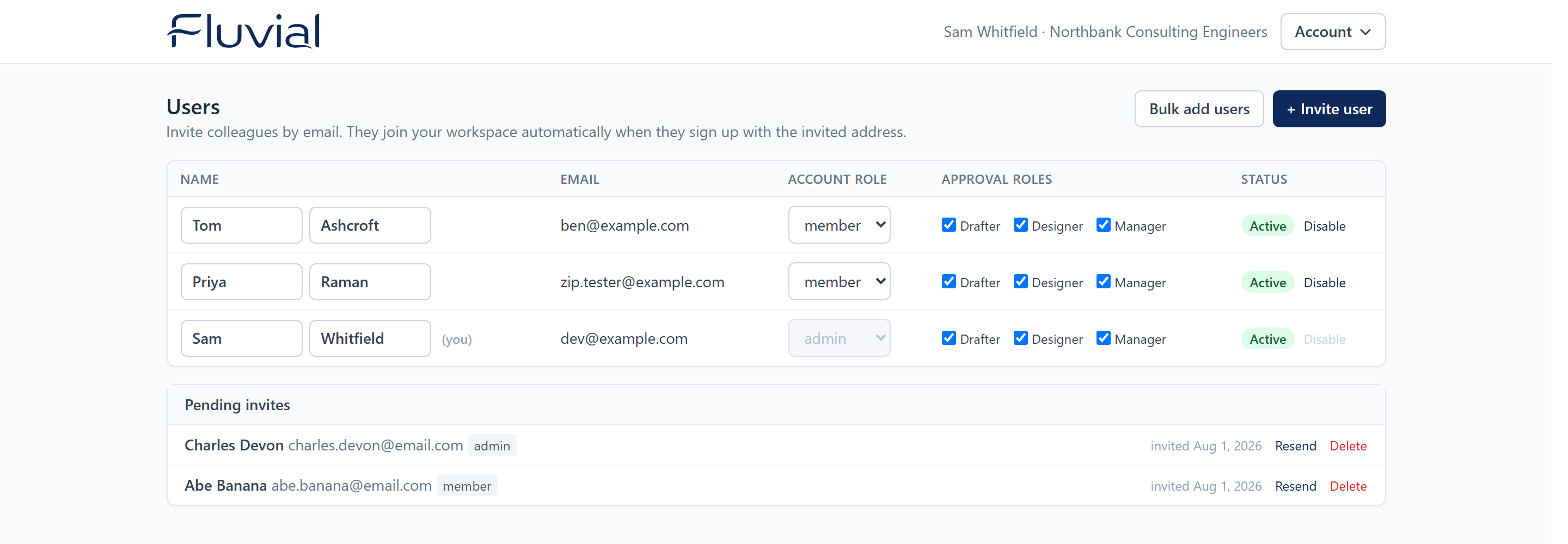 The Users view — account role, approval roles, and status per user.
The two account roles
| Member | Admin | |
|---|---|---|
| View all projects, documents, transmittals | ✅ | ✅ |
| Upload, edit drafts, approve (per approval roles), issue, resend | ✅ | ✅ |
| Withdraw documents, delete draft transmittals, manage contacts | ✅ | ✅ |
| Create projects | ✅ | ✅ |
| Delete projects | — | ✅ |
| Account settings, users, billing | — | ✅ |
Members can do all the day-to-day document control work; admins additionally govern the account. Teams are assumed small and trusted.
Approval roles
Independently of account role, each user holds a set of approval roles (drafter / designer / manager) controlling which sign-offs they can give. New users start with all three; trim per user to match your QA process — e.g. only senior engineers keep manager.
Invite a user
- In the Users view, select Invite and enter their name, email, and account role.
- They receive an email invitation. They sign up with that email address and join your workspace automatically, with the role you chose.
- Until then they appear under Pending invites — re-invite the same address to resend the email, or Revoke to cancel it.
If the address already has an Fluvial login, Fluvial tells you so.
Change roles or disable a user
- Account role and approval roles are edited per user, in-app, and take effect immediately.
- Disable a user who leaves the firm: they can no longer sign in or act, but their name remains on every historical record — approvals and issues they made stay attributed forever.